Utilities
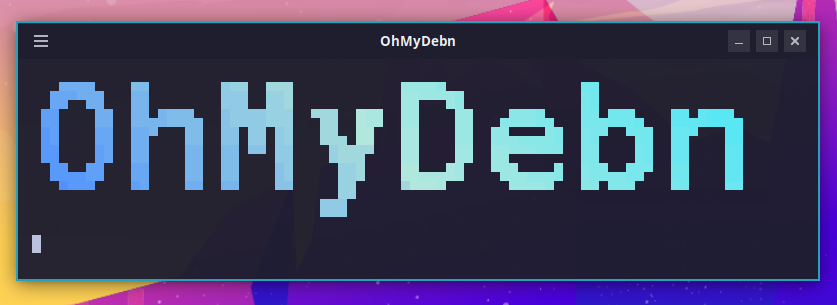
OhMyDebn Logo
To show the OhMyDebn logo in all of its glory, press Ctrl + Shift + O. The logo takes its colors from your current theme, and an open logo window updates when you change themes.
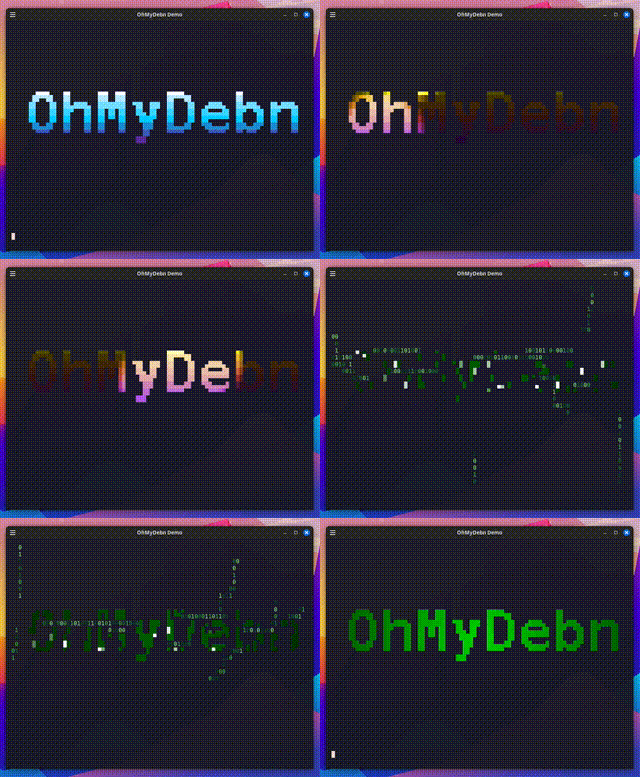
OhMyDebn Demo
To show an animated OhMyDebn logo demo, open the OhMyDebn menu and choose the Demo option or just use hotkey Ctrl + Alt + D.
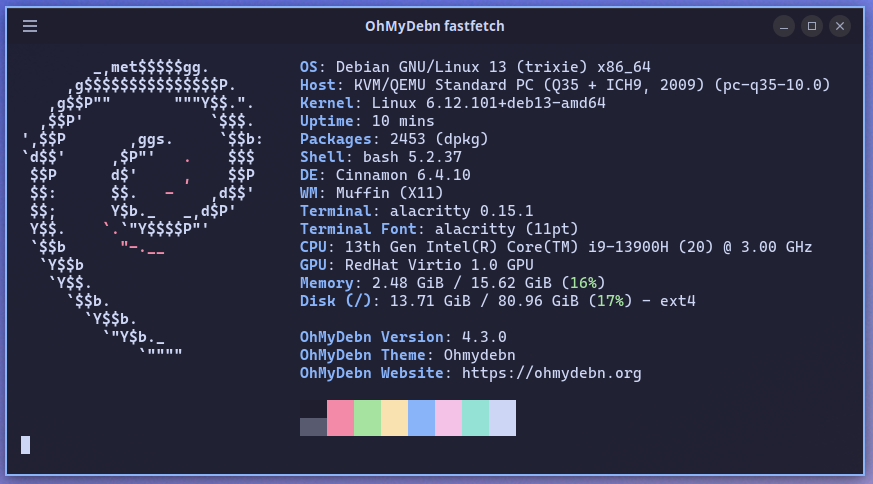
System Summary
To see a system summary, open the OhMyDebn menu and choose the About option or just use hotkey Ctrl + Shift + S.
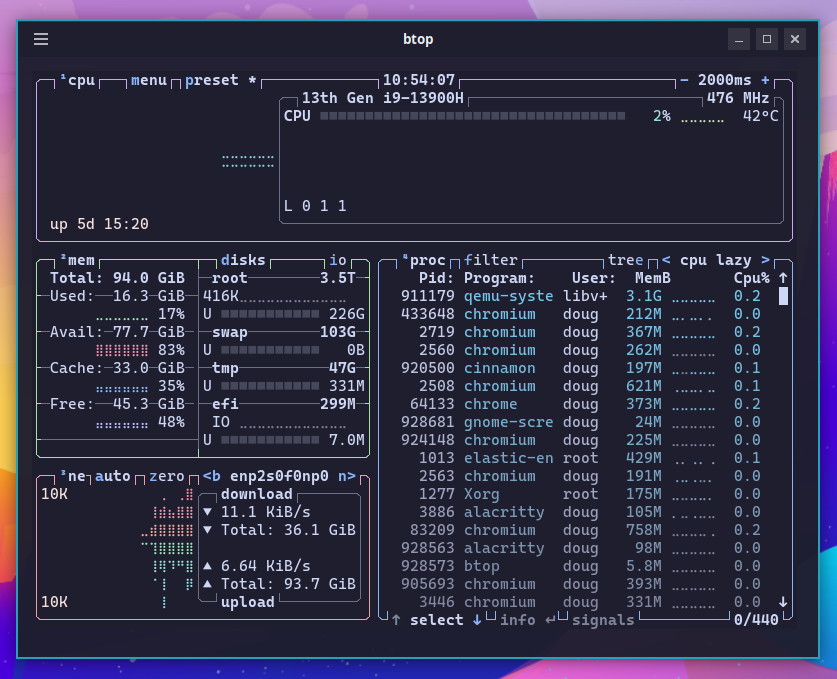
System Monitoring
To monitor your system performance, launch btop via Cinnamon menu or via hotkey Super + T.
Speed Test
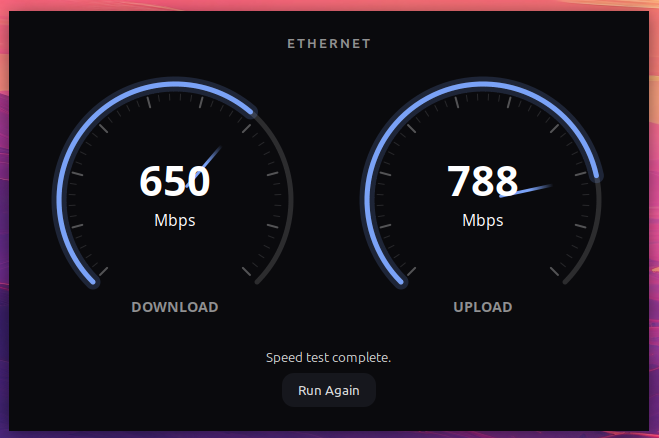
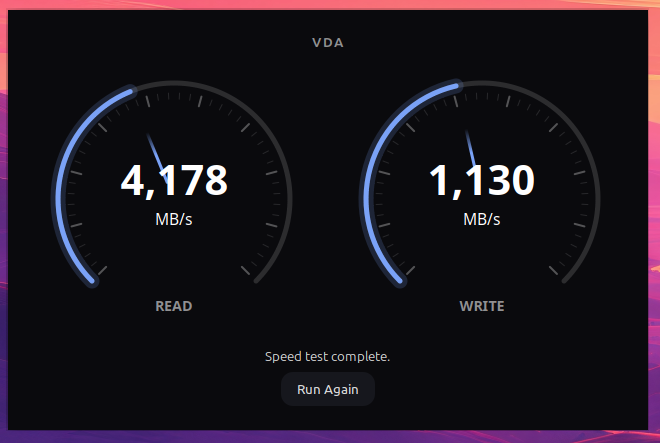
To test your network or disk speed, open the OhMyDebn menu and choose Trigger > Speed Test > Network Speed Test or Disk Speed Test. Each shows a live dial readout while it measures, running a download/read pass followed by an upload/write pass. If you'd rather see the results in a terminal instead, run ohmydebn-network-speedtest or ohmydebn-disk-speedtest.
Screenshots, Screen Recording, and Color Picker
Open the OhMyDebn menu and choose Trigger > Capture:
Screenshot- capture a region, a window, or the whole display (the Capture hotkeys do the same without the menu)Screenrecord- start or stop Cinnamon's built-in screen recorder, or launch SimpleScreenRecorder for more control; SimpleScreenRecorder installs itself the first time you pick itColor- pick a color from anywhere on screen with gcolor3
Deskflow
Deskflow is available as an optional installation. You can install via OhMyDebn menu (Apps > Utility). You can then run via menu and share your keyboard and mouse with other systems running Deskflow.
LocalSend
LocalSend is available as an optional installation. You can install via OhMyDebn menu (Apps > Utility). You can then run via menu and transfer files to other systems running LocalSend.
rclone
rclone syncs files to and from cloud storage from the command line. It is available as an optional installation via OhMyDebn menu (Apps > Utility). Picking it installs rclone if needed and then opens a terminal showing its help, ready for whatever remote you want to configure.
SSH Server
SSH server is available as an optional installation. You can install via OhMyDebn menu (Apps > Utility). You can then SSH to the system from other systems.
OhMyDebn's firewall denies inbound connections by default and OhMyDebn never opens a port for you, so the server stays unreachable until you allow port 22. The installer and the menu's status window show the firewall's current rules for that port, or, when there are none yet, the two commands to add one: allow from one address or range (recommended), or allow from anywhere.
Remote Desktop Client
Remmina, a remote desktop client for RDP and VNC, is available as an optional installation via OhMyDebn menu (Apps > Utility > Remote Desktop Client (Remmina)). Use it to connect to another machine's desktop, such as an OhMyDebn machine running the Remote Desktop Server below.
Remote Desktop Server
Remote desktop access to this machine over RDP, using XRDP, is available as an optional installation via OhMyDebn menu (Apps > Utility > Remote Desktop Server (XRDP)). It installs XRDP, sets up a Cinnamon session for remote logins, and starts the service. Connect from another machine with Remmina or any RDP client, using the address the menu shows and port 3389.
Some things to know:
- As with SSH, the firewall stays closed to port 3389 until you allow it. The installer and status window show the current rules for that port, or the commands for allowing one address or range, or anywhere, when there are none yet.
- One desktop per user. A user's Cinnamon desktop can run locally or over RDP, not both at once, so log out of the local desktop before connecting, and log out of the remote session before using the local desktop again. OhMyDebn refuses the second login with a message saying which session is in the way. A remote session you disconnected from without logging out is still open; the message tells you how to end it.
- If one person needs to work at the screen while another connects remotely, give the remote person their own user account with a strong password. Never leave an account's password empty: an account with an empty password can log in over RDP. A user new to OhMyDebn gets a stock Cinnamon desktop until they run the installer once in their own session, with
bash /usr/share/ohmydebn/install.sh, and afterwards refreshes their own desktop configuration withohmydebn-update. Both need the user to have sudo rights.
To remove it later, run ohmydebn-remote-desktop-server-remove. It removes the packages and the settings OhMyDebn added, and leaves any firewall rule you created for you to remove.